 ChatXport
The fastest way to open it
Windows has a built-in tool for this. You don't need to install anything. Click through the steps below.
Find the ZIP file
Open File Explorer and navigate to wherever the file landed. For most people that's the Downloads folder, but it might be on the Desktop or in a folder where your email or cloud app saved it.
Right-click the ZIP
A menu will open. You're looking for the option labelled Extract All. On newer versions of Windows, you may need to click Show more options first.
Pick where to extract
Windows suggests a folder with the same name as the ZIP, right next to it. You can leave that as is, or pick a different folder. Keep "Show extracted files when complete" ticked so the folder opens automatically when it's done.
Click Extract
Windows unpacks the contents. For a small chat this takes a second or two. For a long chat with lots of photos and videos, give it a minute or so.
You're done
A new folder opens with the extracted contents. The original ZIP is still in Downloads, untouched. Keep it. It's the cleanest version of the export and worth holding on to.
One thing nobody mentions. When you double-click a ZIP in Windows, it shows you the contents like a normal folder. Looks fine, but you haven't extracted anything yet. The files are still compressed and most programs won't work with them properly. Always extract first.
What's inside the extracted folder
Once Windows finishes, you'll see a folder with a mix of files. Click any of the icons below to see what each one is.
The cryptic filenames are not a bug. WhatsApp strips the original photo names during export and renames everything in a date-and-sequence format. The names tell you when the file was sent, but there's no way to tell what's actually in the image without opening it.
Opening the text file (and why it disappoints)
The obvious next move is double-clicking _chat.txt. Windows opens it in Notepad and you see something like this:
[12/06/2024, 19:48:00] Sarah: Okay everyone 💍 welcome to the wedding planning headquarters!!
[12/06/2024, 19:52:00] Kate: Hi Sarah, Tom, and everyone! So excited to be working with you.
[12/06/2024, 19:52:30] Kate: <attached: DOC-20240612-WA0001.pdf>
[12/06/2024, 19:54:00] Sarah: We're aiming for mid-February next year.
That's the whole chat. Every message, in order, as plain text. Photos and other attachments appear as bracketed filenames, but the actual image is sitting in a separate file in the folder.
For a short chat this is workable. You can scroll, use Ctrl+F to find a word, and read through. For anything longer than a few hundred messages, it stops being practical. The photos stay disconnected from the conversation, filtering by sender or date isn't possible, and saving the chat as anything other than another text file isn't an option.
The shortcut: skip the extraction entirely
You don't actually have to extract the ZIP. ChatXport reads the .zip file directly. Drag it into the app and it parses the messages and pulls the photos out automatically, showing everything together. Toggle below to see the difference.
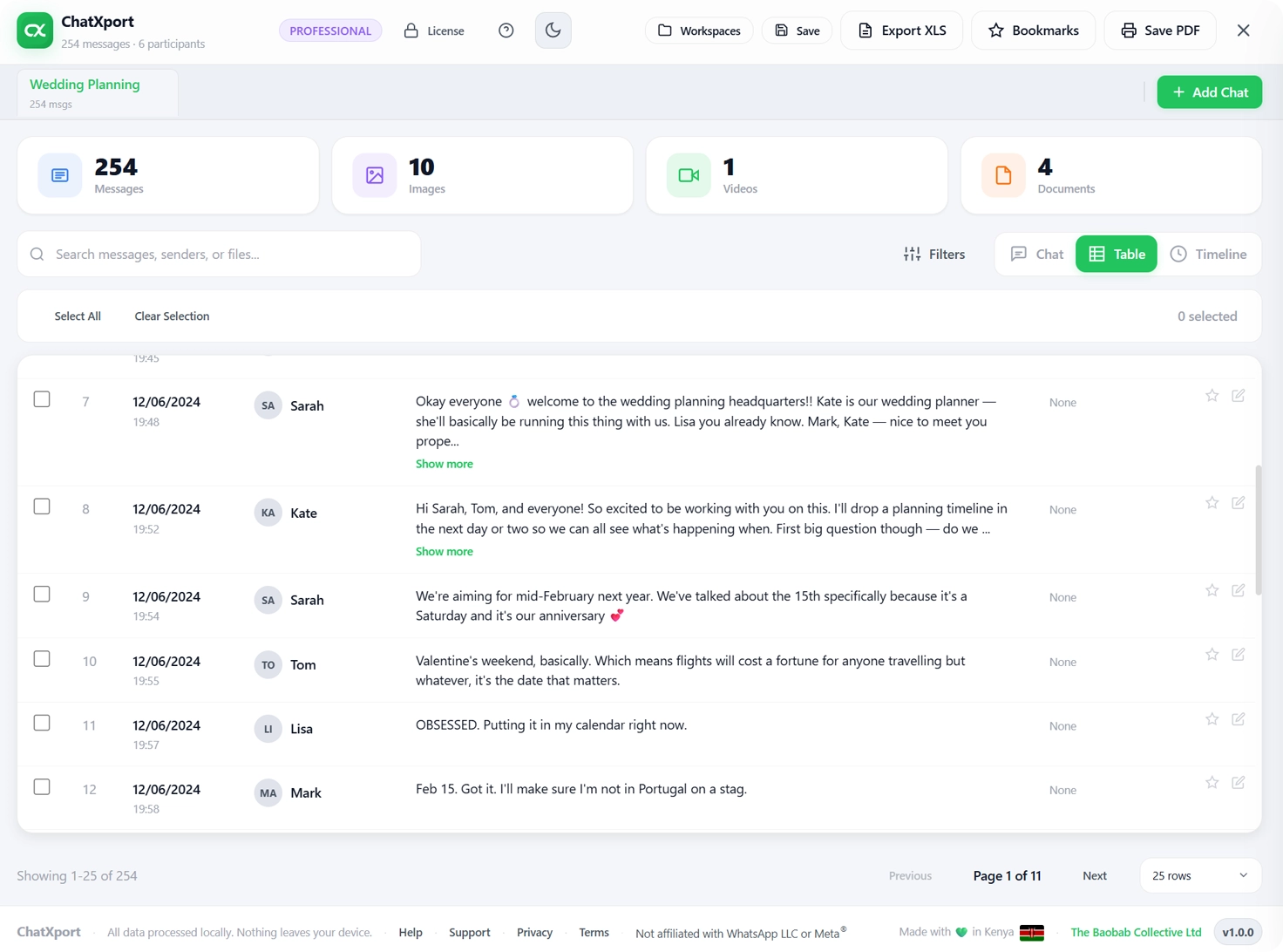
Some online viewers do something similar but ask you to upload the ZIP to their server first. For anything sensitive, that's a risk you don't need to take. ChatXport runs entirely on your laptop. Nothing is uploaded.
Common problems and what to do about them
"It's asking for a password." WhatsApp exports are never password protected. If Windows is asking for one, you're probably looking at a different ZIP. Check the filename.
"The ZIP looks empty." Usually means the file didn't fully download. Go back to wherever you got it from and download again. If it came as an email attachment, make sure you downloaded the attachment itself, not just opened the message.
"Windows says it can't extract the file." Two common causes. The file got corrupted during transfer, in which case download it again. Or you don't have permission to write to the folder you're extracting to, in which case try extracting to your Desktop instead.
"The file is too big to email." Exports with photos and videos can run to several gigabytes for long chats. Email won't accept them. Use Google Drive, iCloud, or OneDrive, or move the file over with a USB cable. If you only need the text, you can re-export from WhatsApp with the "Without media" option.
"I extracted it but there are no photos." The export was saved without media. When you tap Export Chat in WhatsApp, you get a choice between Include media and Without media. The text-only option doesn't include any photos or videos. Re-export with media included to get them.
Frequently asked questions
Do I have to extract the ZIP or can I just open it?
For Notepad and basic viewing, you need to extract it first. ChatXport reads the ZIP directly without extraction.
What's the difference between the ZIP and the txt file inside?
The ZIP is the package that holds everything. The txt file is the actual messages. Photos and other media are separate files inside the ZIP.
Can I open a WhatsApp export ZIP on a Mac?
Yes. On Mac, double-clicking the ZIP extracts it automatically, which is the opposite of how Windows handles it. ChatXport is currently Windows-only.
Will the photos appear inside the chat or as separate files?
In Notepad, only as filenames in brackets. In a dedicated viewer like ChatXport, the photos appear inline with the message they were sent with.
Is there a limit to how big a WhatsApp export can be?
WhatsApp doesn't enforce a fixed limit, but very long chats with lots of media can run to several gigabytes. The bigger the export, the longer it takes to extract.
Is it safe to delete the original ZIP after extracting?
You can, but it's worth keeping. The ZIP is the cleanest copy of the export, exactly as WhatsApp produced it. If you ever need to share the export with someone else, or open it in another tool, the original ZIP is what you want.
Skip the extraction. Open the ZIP directly.
ChatXport reads WhatsApp ZIP files as they come, with photos and messages together, fully offline. The free version handles up to 300 messages of any chat.
Explore ChatXportWhat to do next
This is the first article in a short series on working with WhatsApp exports. The rest of the series covers:
- How to save a WhatsApp chat as a PDF
- How to view photos inside the chat, instead of as separate files
- How to search old WhatsApp messages without scrolling for hours
- How to print a WhatsApp conversation
Got stuck on something not covered here? Email us and we'll add it.